
ImageSage guide · Windows 10/11
Rename photos with local AI on Windows
Magic Rename proposes filenames based on what a selected image shows. It runs on your PC, and you review the suggestions before applying them. This is useful when names such as IMG_4821.jpg give you little help finding a photo later.
Rename selected photos in ImageSage
- Find and select the images. Browse an imported folder or search by description. Select the photos whose filenames you want to change.
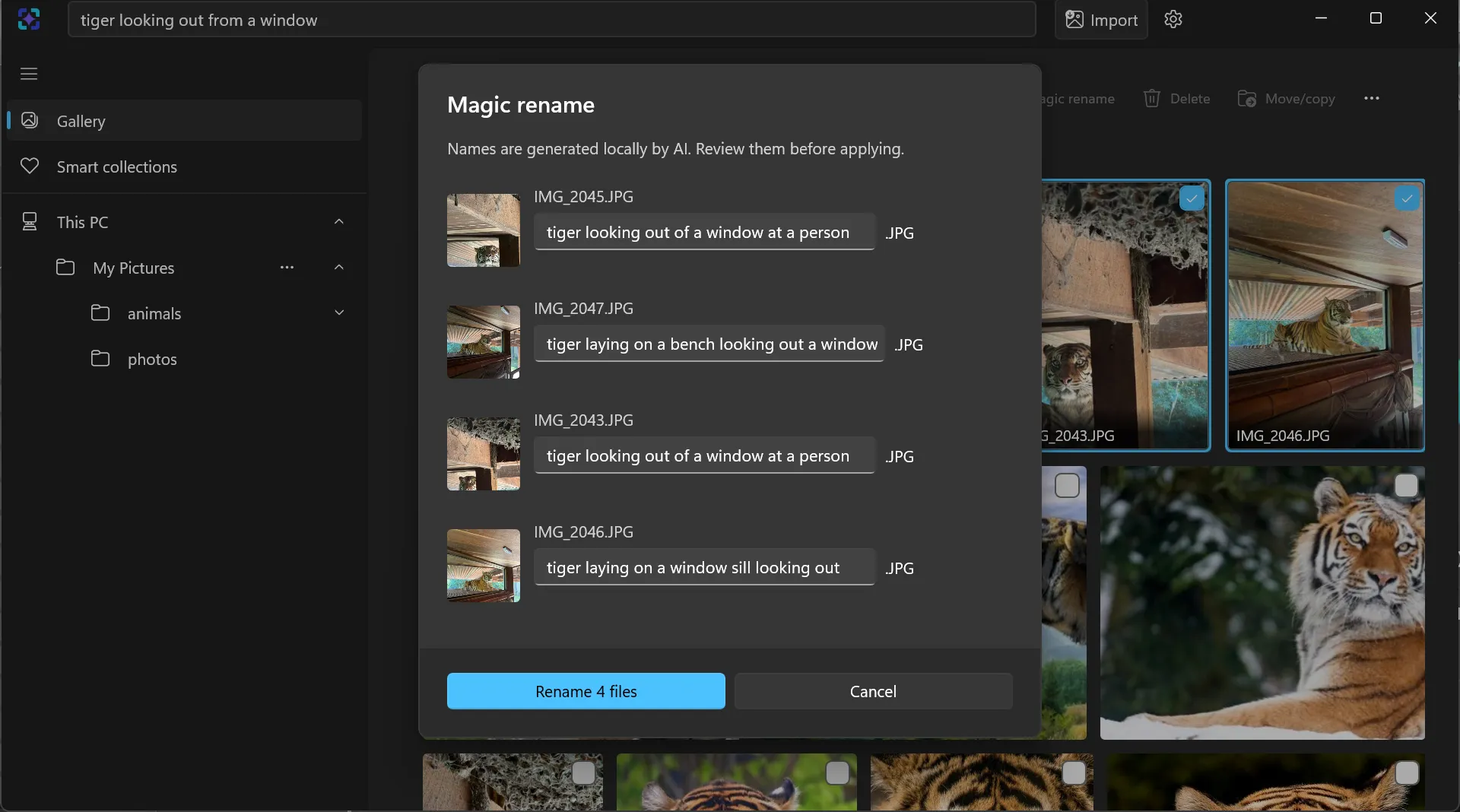
- Choose Magic rename. ImageSage generates proposed names locally and opens a review dialog showing the original filenames and suggestions.
- Edit and choose what to include. Check each suggestion against its photo. Change the proposed name where needed, and deselect images you do not want renamed.
- Confirm the reviewed set. Use the dialog’s Rename button when the included names are ready. Cancel if you do not want to apply them.
What changes when you confirm?
Magic Rename changes the names of the selected original files. It is not merely a label inside a separate photo library. The review editor changes the filename stem while keeping the file extension. For example, a JPEG remains a JPEG; renaming is not image conversion.
A name like boat-on-a-lake.jpg is an example of a descriptive filename you could review or enter, not a guaranteed AI output. Prefer a short, recognisable description, and add any personal context yourself only if you want it in the filename.
Why reviewing matters
The model can misinterpret a scene, miss details or suggest inappropriate words. It cannot reliably know the identities of people or the private story behind a photo. Treat the suggestion as an editable starting point. If a name is wrong, edit it, exclude that image or cancel.
Other applications, documents or workflows may refer to an image by its existing path. Consider those references before confirming a rename, and keep backups for files you need to preserve. The AI transparency note explains the model’s limitations.
How is this different from numbered batch renaming?
A numbered rename applies a naming pattern to a group of files. Magic Rename instead proposes a description for each selected image. You can review a group together while editing individual suggestions, which is useful when the images contain different subjects.
Can I use it offline?
Yes. The model is packaged with ImageSage and generates suggestions on your device. No ImageSage account or photo upload is required. Microsoft Store installation and updates use a connection. Read how ImageSage handles your files, or visit support if suggestions cannot be generated.