
ImageSage guide · Windows 10/11
Search photos by description on Windows
You remember two people on a beach, but the photo is called something like IMG_4821.jpg. ImageSage lets you search your selected folders using a description of the picture, without uploading your library or manually tagging each file.
Find a photo in four steps
- Add your photo folders. Use Import in ImageSage, or Add folder in Settings. Choose folders containing PNG, JPEG or WebP images. Indexing reads the files in place.
- Let visual search prepare. Thumbnails may appear before the visual index is ready. Wait for search preparation to finish so the images you want can participate in a search.
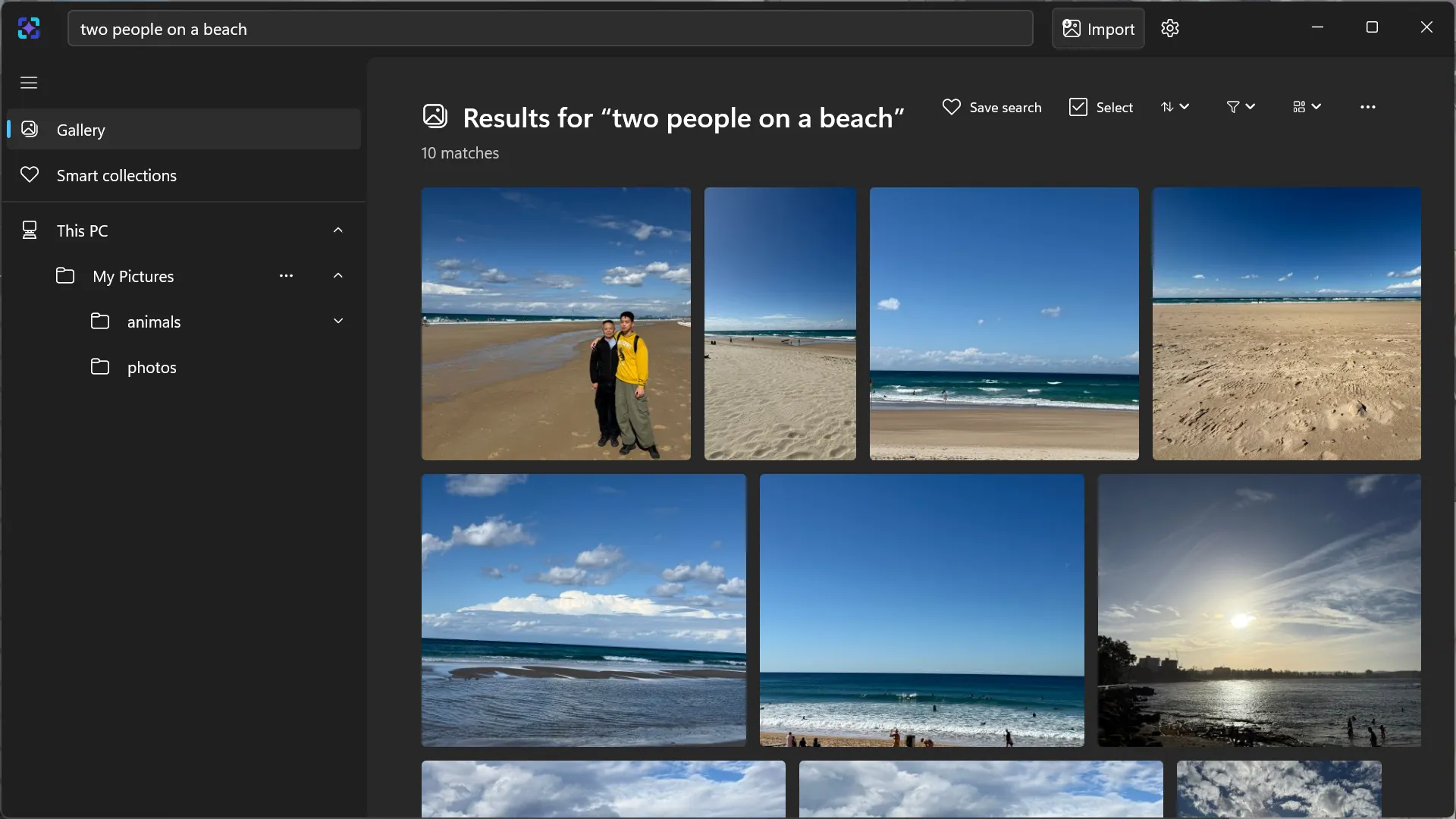
- Describe the scene in the search box. Try
two people on a beach. Press Enter to run the search. Begin in Gallery when you want to search across your library rather than a selected folder. - Review the results and refine. Open likely matches to check them. If the results are too broad, add one distinctive detail, such as an object, colour or setting.
What makes a useful description?
Describe what is visible rather than information the picture cannot show. For a holiday photo, boat on a lake near mountains gives the search more visual information than my favourite trip. These are example queries to adapt to your own images, not guaranteed matches.
- Start with the main subject: a dog, a bicycle or a group of people.
- Add the setting or action: on a beach, in snow or sitting at a table.
- If a long description is unhelpful, shorten it to the most distinctive visible details.
Descriptions, visible words and filenames are different clues
Visual search estimates how well an image matches the meaning of a description. It does not identify a person or guarantee that every detail matches. If you remember words printed in the image, use text search with OCR. If you know the filename, try a filename filter such as filename:holiday.
Why might a photo be missing?
Check that its folder is included, the file is in a supported format and visual preparation has finished. Also check whether you are searching only one folder. An approximate visual match can still be missed; try a simpler description and browse likely folders. RAW, HEIC and video files are outside the supported PNG, JPEG and WebP set.
The search runs locally after installation. There is no ImageSage account or cloud upload. See the privacy policy for storage details, or support if preparation fails.