
Offline AI photo search for Windows
Find the image you remember.
Search your photos by what they show or the words inside them. ImageSage runs AI search, OCR and filename suggestions on your PC, with no account or photo upload.
Free from Microsoft Store · Windows 10/11
View ImageSage in Microsoft StoreSearch naturally
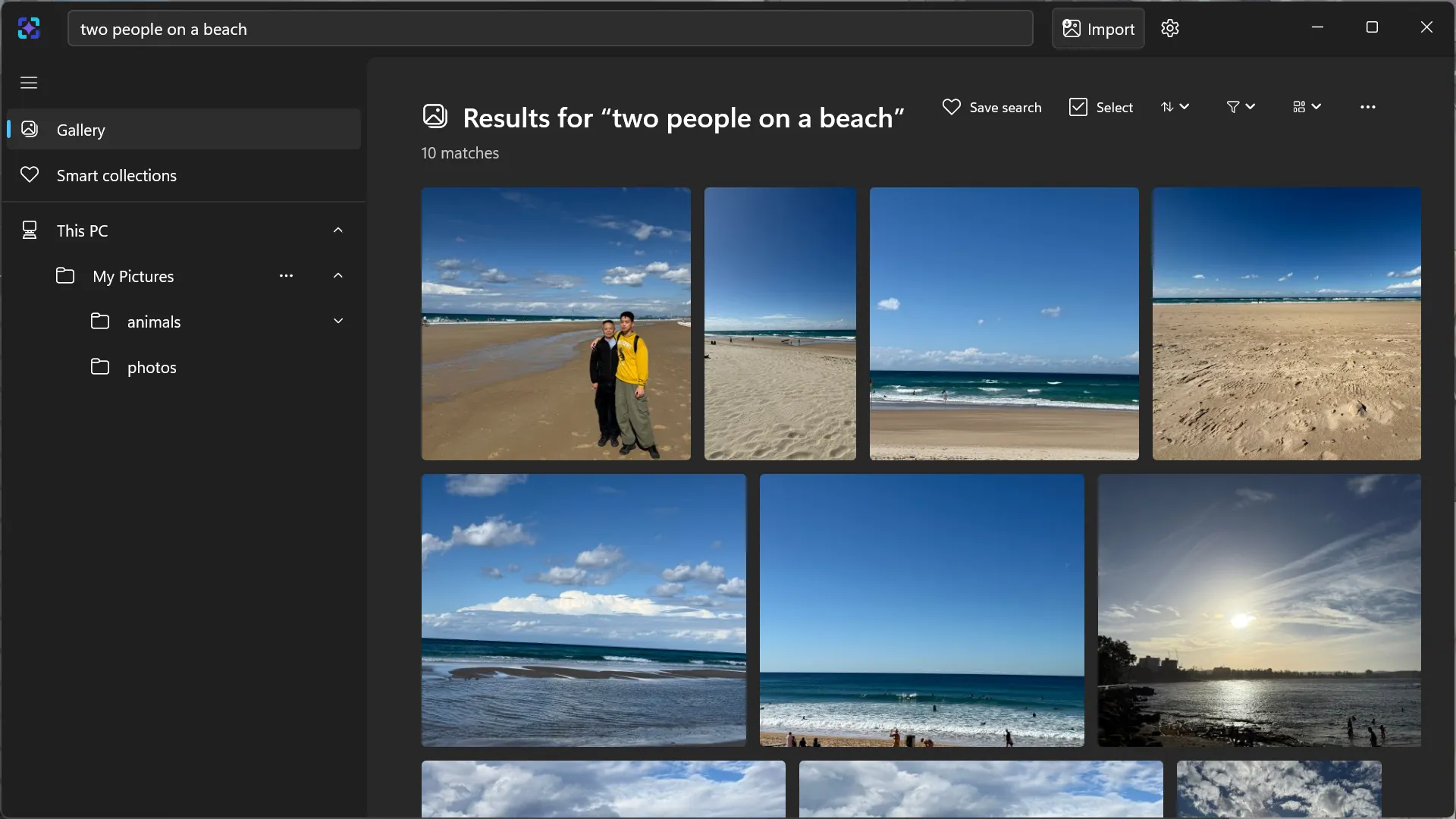
Search photos by description or text.
One search box can understand what a photo shows, read words with on-device OCR, or narrow the library by name and path.
Review before applying
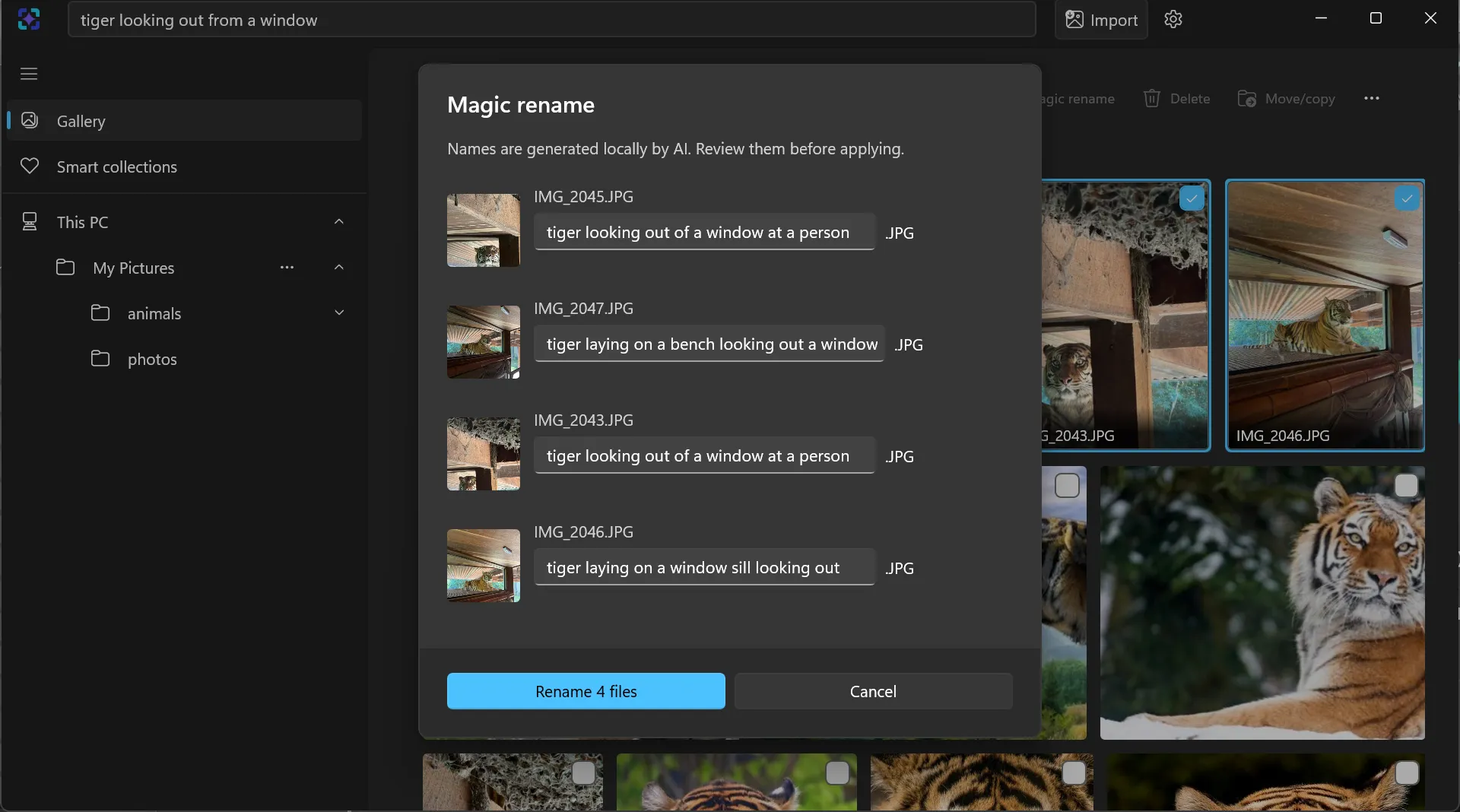
Rename photos with local AI.
Magic Rename proposes a concise filename for every selected image. Edit each suggestion, review the list, and apply only when it looks right.
- 1Select
- 2Review
- 3Confirm
Act on the results
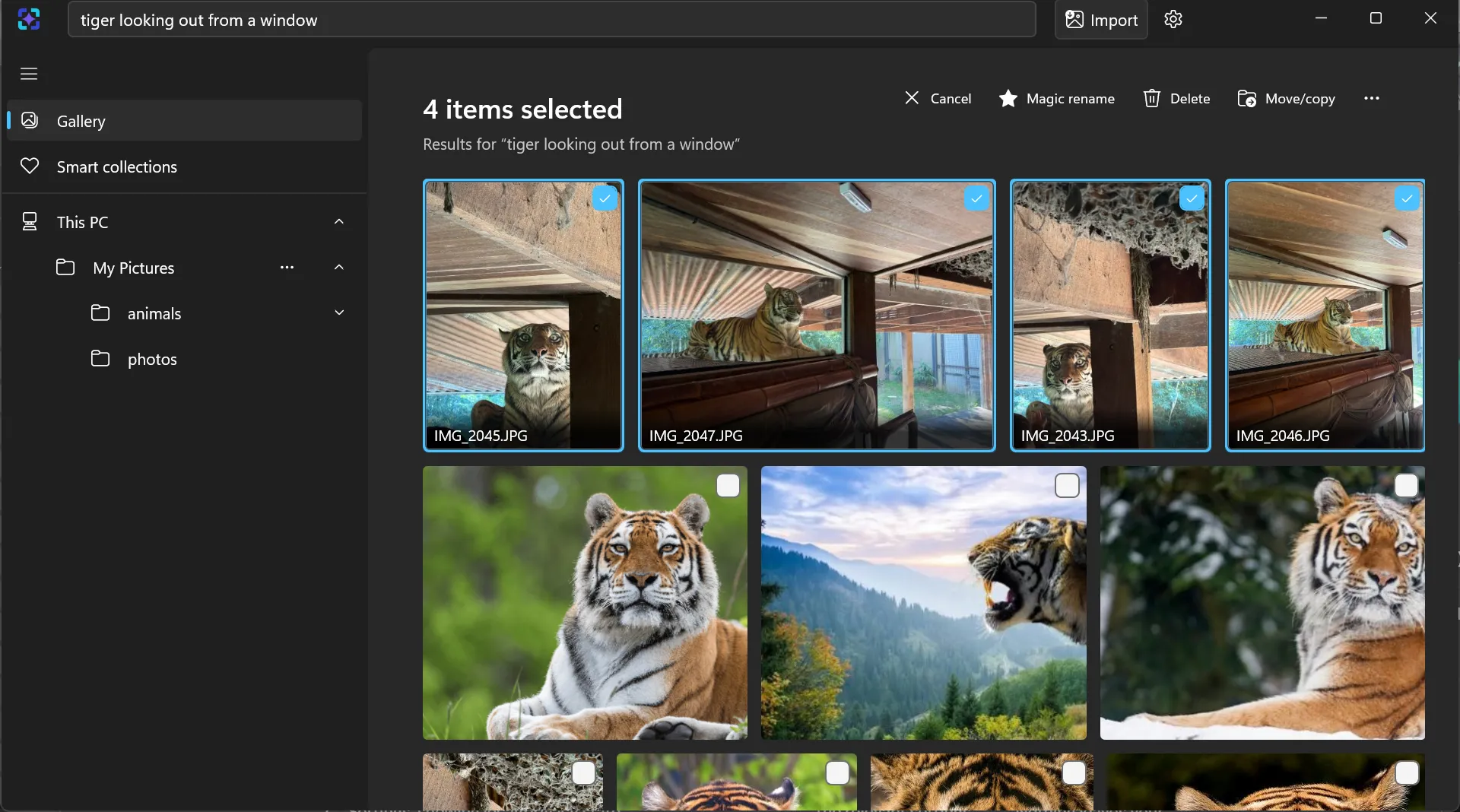
Select, move, copy, rename or delete.
A result set is ready to work with. Select the images you need and perform a file action without leaving the search; indexing never moves originals on its own.
Start with what you remember
Three ways to find and organise your images.
Search photos by description
Find a photo by its subject or scene, even when you cannot remember the filename.
Search text inside screenshots
Use local OCR to find screenshots, receipts and other images by the words they contain.
Rename photos with local AI
Turn selected photos into editable filename suggestions, then review before applying.
Before you download
ImageSage questions, answered.
Is ImageSage free?
Yes. ImageSage is free from Microsoft Store and does not require an ImageSage account.
Can I search my photos offline?
Yes. Indexing, OCR, visual search and Magic Rename run on your PC using packaged models. Installing and updating through Microsoft Store requires a connection. Your photo library and searches are not uploaded to the developer. Read the privacy policy.
Which Windows versions and image formats are supported?
ImageSage supports Windows 10 22H2 (build 19045) and Windows 11 on x64 devices. It reads local PNG, JPEG and WebP images. RAW, HEIC and video files are not part of that supported format set.
Can I find text inside screenshots?
Yes. On-device OCR makes recognised words searchable. Let OCR preparation finish, then search for the words or use quotes for an exact recognised phrase. Follow the screenshot search guide.
Does importing a folder move or rename my files?
No. Indexing reads your selected folders in place. File actions such as move, copy, delete and rename happen when you request them. Magic Rename shows editable suggestions and only applies the names you confirm.
Why are some search results missing?
Check that the folder is included and search preparation has finished. OCR can misread text and visual matching is approximate, so try a shorter phrase or a different description. Visit support and troubleshooting for preparation issues.
Private by design